
Before you transfer your domain to Domain Reseller Guru, you will require the Authorization Code for the domain from the current domain registration provider. If the domain name is locked, the transfer request will automatically fail as the domain must be unlocked prior to initiating the transfer. To unlock the domain: If you do not understand, contact your current domain registration provider and ask them to unlock your domain in order to transfer it to Domain Reseller Guru. You must also request an AUTH code to transfer your domain. it is also called domain secret code or EPP code.
Once all of the above steps have been completed, and you've got your EPP code in hand you should be ready to transfer your domain name to Domain Reseller Guru.
Step 1 – Start Transfer Your Domain With Us
Click to Go Domain Reseller Guru Domain Transfer page
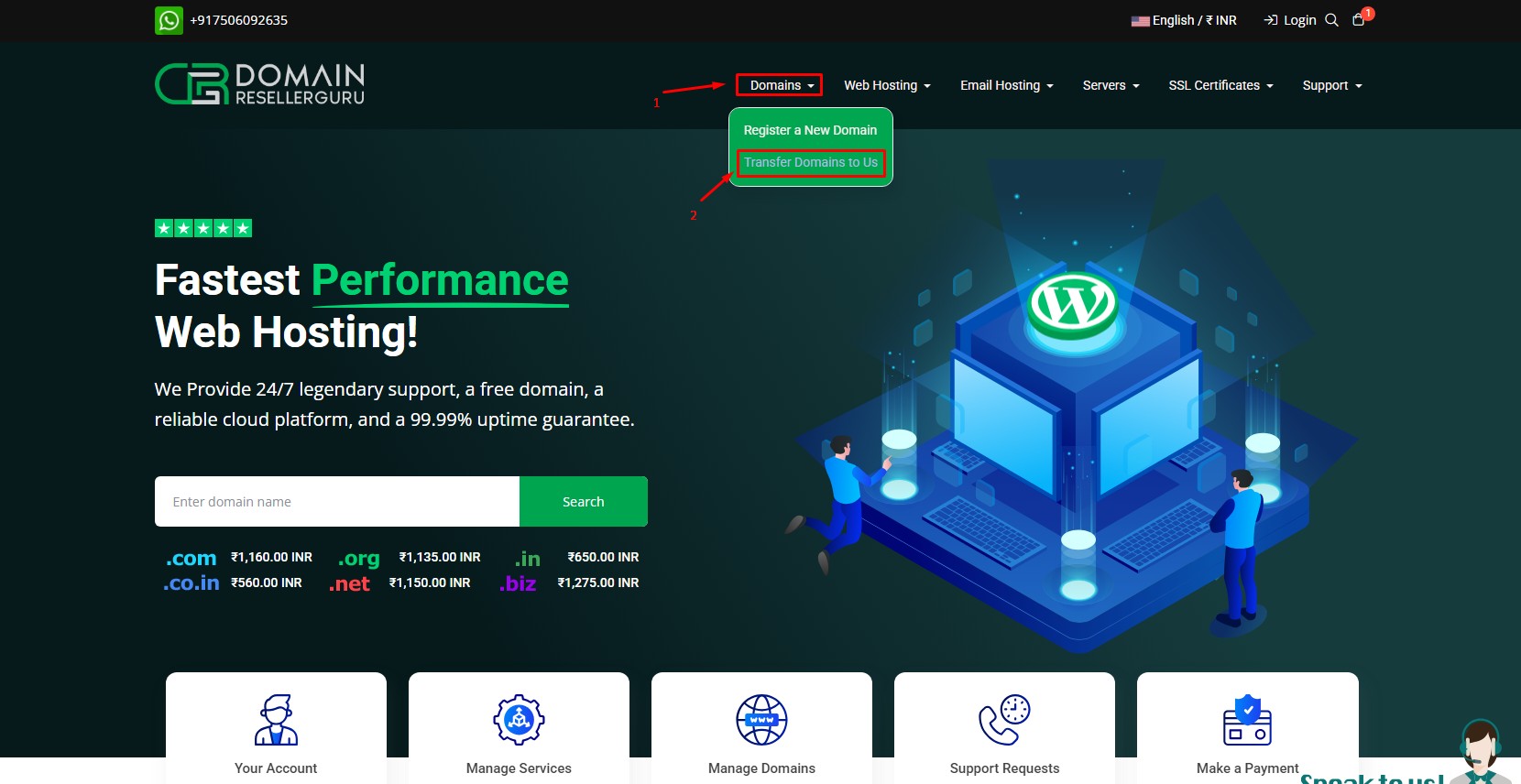
Step 2 – Domain Transfer Page
Enter your domain name & EPP code/ secret code/ Authorization Code then click on Transfer.
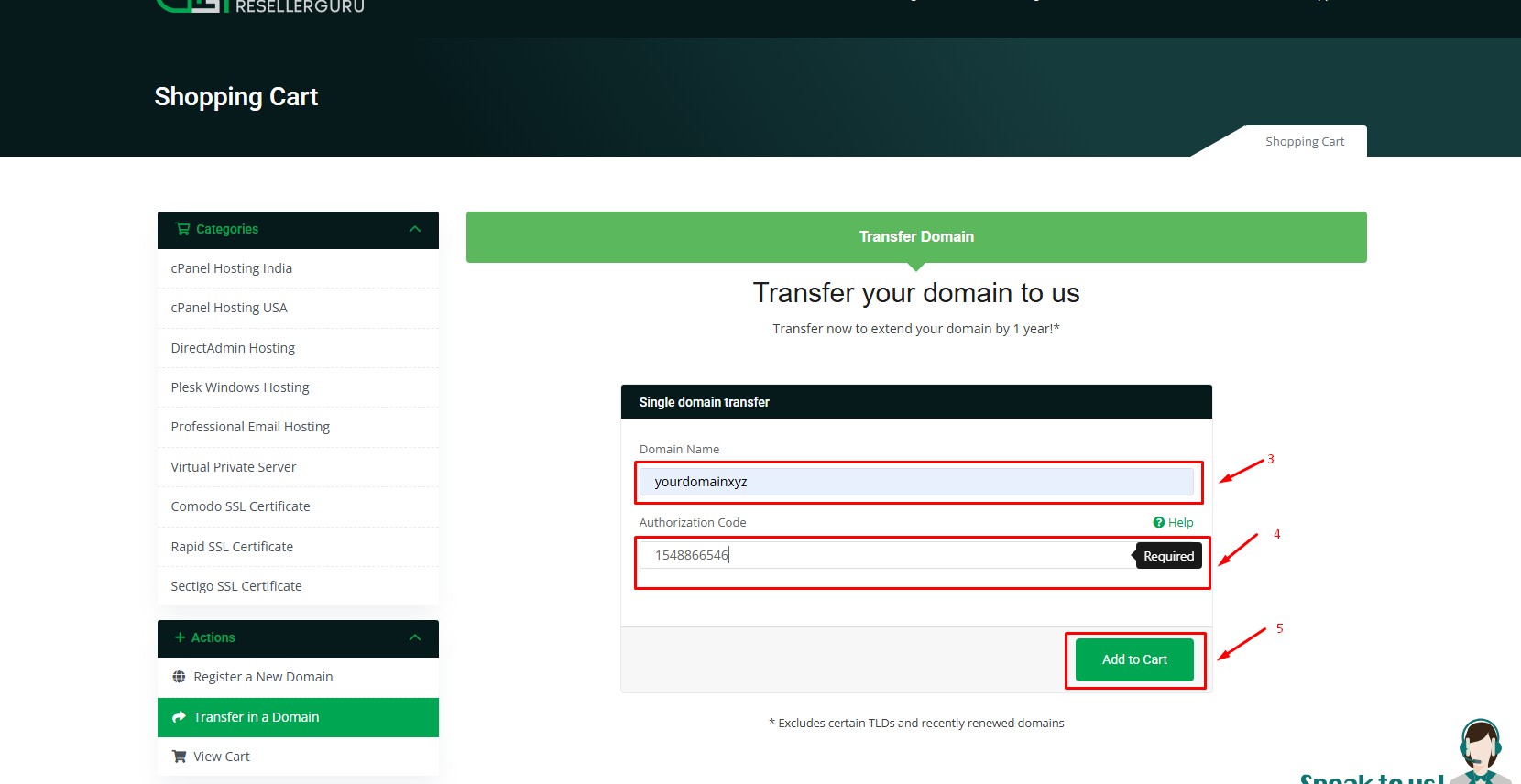
Step 3 – Domains Configuration & Addon
After clicking the “Add to cart” button you will be redirected to the Domains Configuration & Addon page.
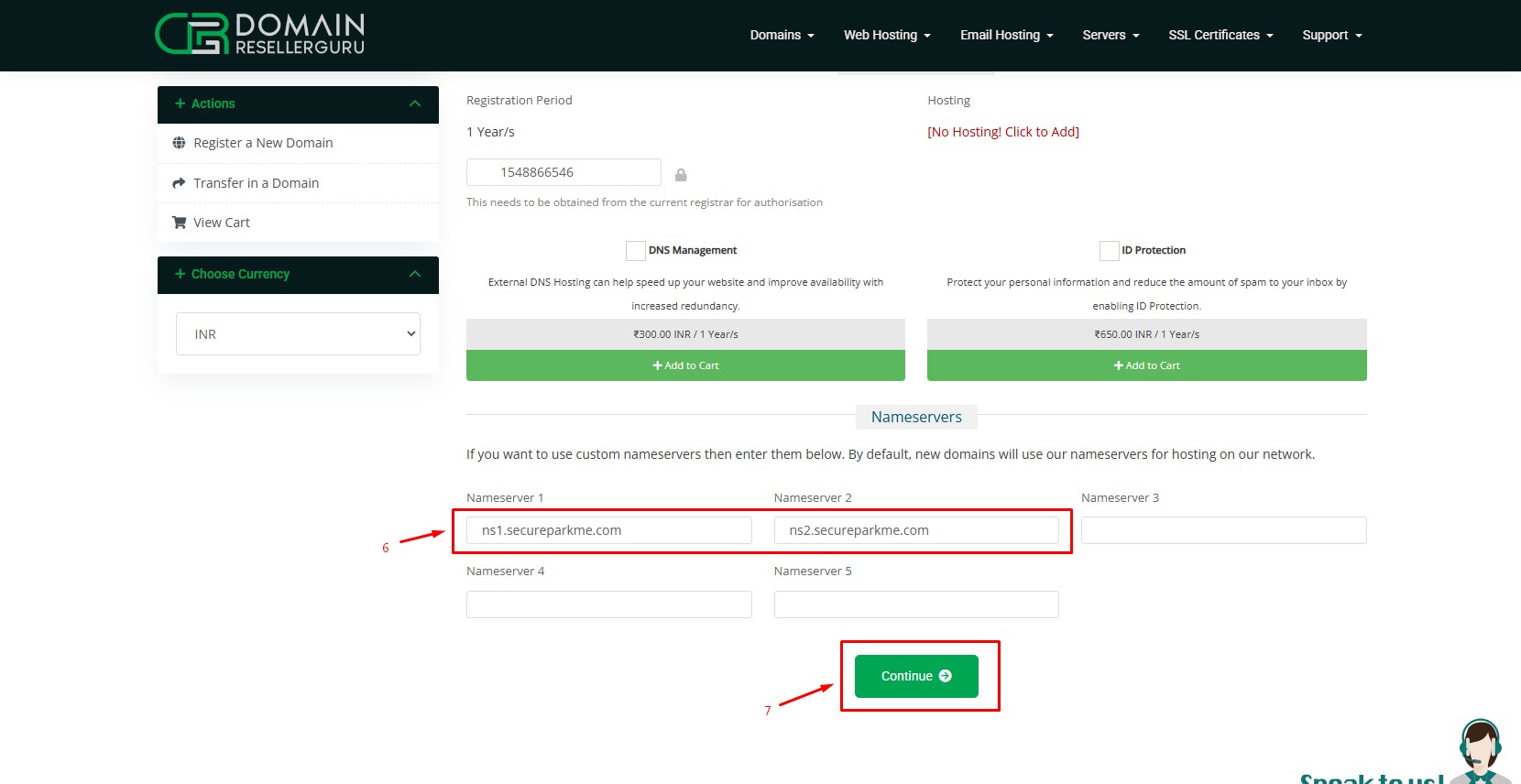
If you want to take hosting packages or add-on, click the “” button.
From the domain configuration page, you can select free add-on, You can also enter this Name Server (ns record) if you have to host from somewhere. Or you can also add hosting packages for your domain.
If you do not want to take hosting packages or add-on, click the “Continue” button.
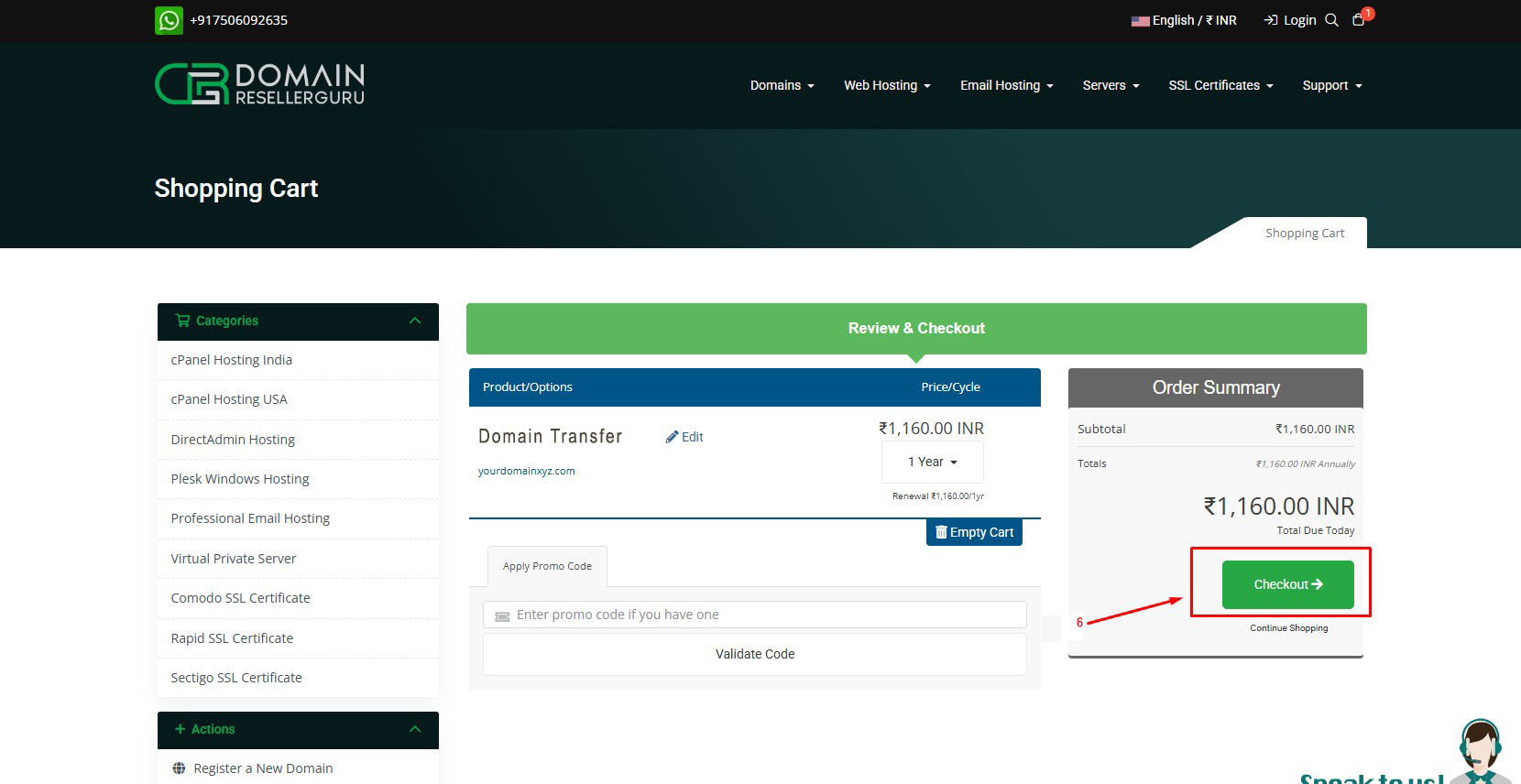
 Step 5- Review & Checkout
After clicking the “Continue” button you will be redirected to the Review & Checkout page click the “checkout” button For Next Page
Step 4 – Complete Your User Registration
If it is an existing customer, Please Click on the "Already Registered" button.
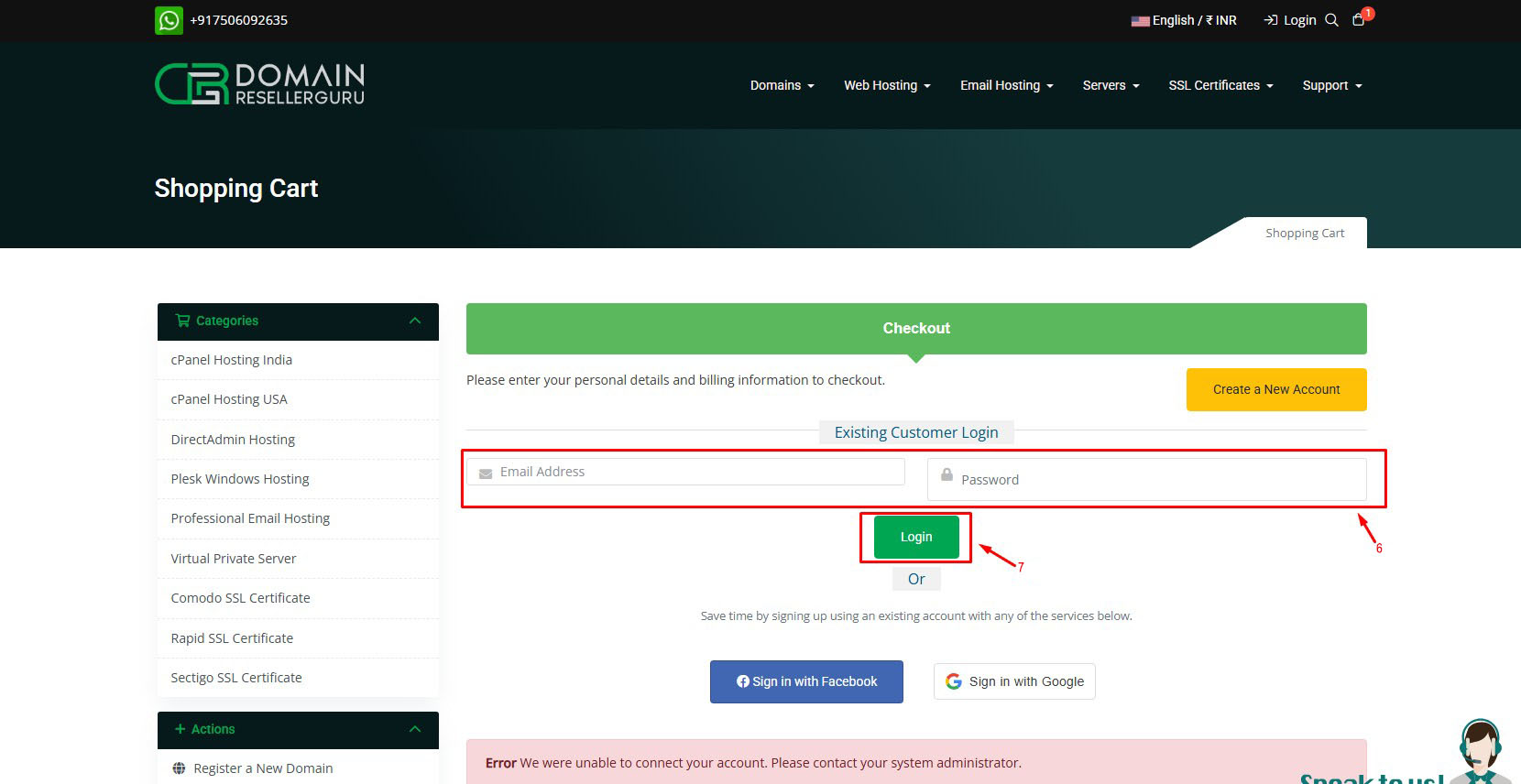
After clicking the “Already Registered” button you will be redirected to the Checkout page.
Enter the email id you used while registering the previous domain for that customer.
After entering the login details, select the payment method by which you want to pay.
After that Click the "Complete Order" button and complete the payment process.
If you are a new customer, fill in the details of the new customer

If you want to pay by credit card, debit card, or net banking, then Choose Payu, CCavenue, PayPal. Or if you want to make a direct transfer to the bank, then select the offline payment method.
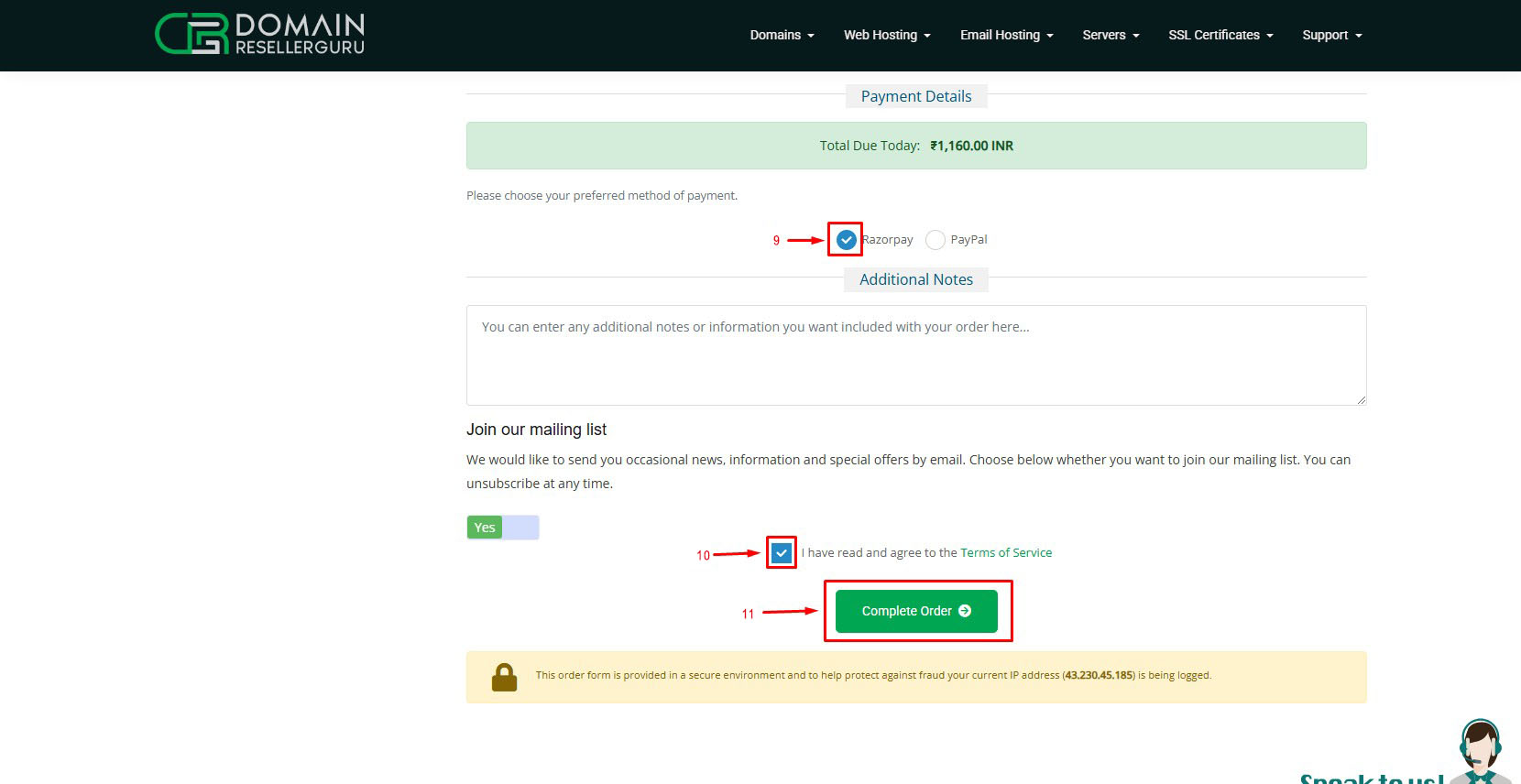
Click on "Complete Order" button after clicking the “Complete Order” button you will be redirected to the Payment Page.
Step 5 – Complete Your Payment for Domain Transfer With Us
As soon as you complete the domain payment, you’ll be redirected to the control panel.
Step 6 – Wait for the transfer to complete
Once you finish the order, the transfer process will be initiated. You will receive an email regarding the domain transfer, make sure to confirm it! This can take up to 7 days to complete.
IMPORTANT - before you initiate a domain transfer, make sure that:
1. Privacy protection is disabled.
2. You have a valid EPP/Auth code from your current registrar.
3. You have full ownership and control of the domain name that you want to transfer to us.
4. The domain name is older than 60 days and is unlocked at the current domain registration provider.
5. The domain was not transferred between registrars within the last 60 days.
